How to Validate HTML: W3C Validator, HTMLHint, and CI Integration
Validate HTML with the W3C Nu validator, HTMLHint, browser DevTools, and automated CI checks. Fix the most common HTML validation errors.
- html
- validation
- w3c
- htmlhint
- accessibility
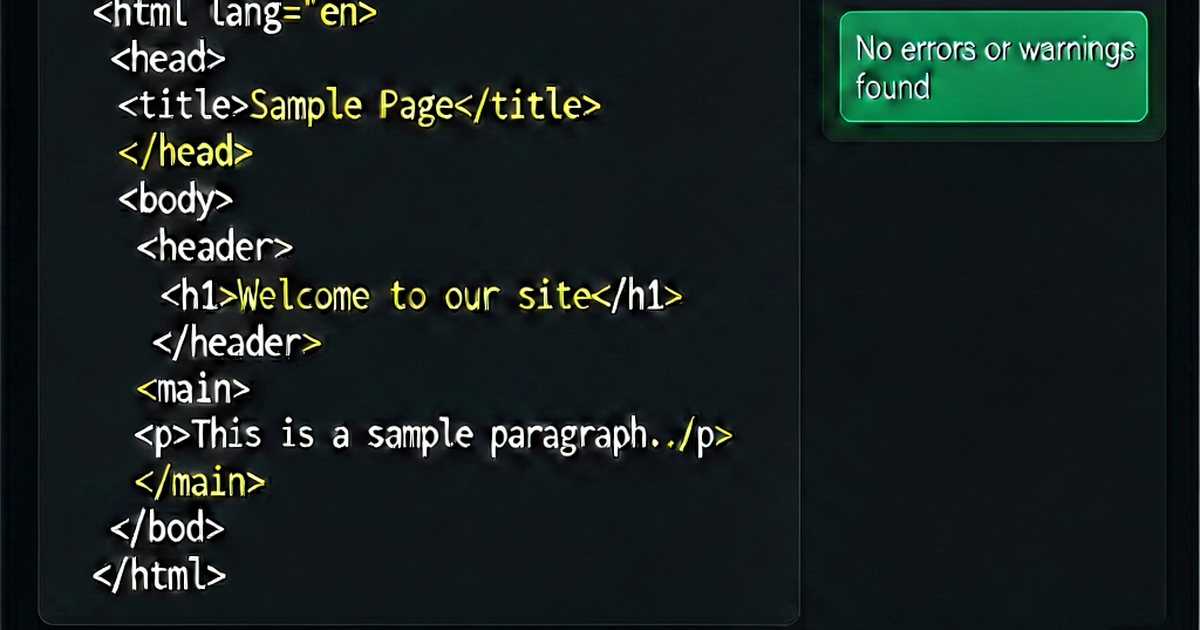

HTML validation checks your markup against the HTML5 specification. Invalid HTML can cause inconsistent rendering across browsers, break accessibility tools, and fail search engine parsing. Here’s how to validate at every stage of development.
W3C Nu HTML Checker
The W3C Nu HTML Checker is the authoritative validator — the same engine browsers use to determine conformance.
Online: Paste a URL, upload a file, or paste HTML directly at validator.w3.org/nu/.
CLI (validator.nu):
# Install (requires Java 8+)
curl -s https://github.com/validator/validator/releases/latest/download/vnu.jar -L -o vnu.jar

# Validate a file
java -jar vnu.jar index.html

# Validate multiple files
java -jar vnu.jar *.html

# JSON output for CI
java -jar vnu.jar --format json index.html
npm wrapper:
npm install --save-dev vnu-jar

# package.json
{
  "scripts": {
    "validate": "java -jar node_modules/vnu-jar/build/dist/vnu.jar dist/**/*.html"
  }
}
HTMLHint
HTMLHint is a JavaScript-based linter with configurable rules — faster than the Java-based W3C validator and easier to integrate into build pipelines.
npm install --save-dev htmlhint

# Validate
npx htmlhint "src/**/*.html"

# Custom configuration (.htmlhintrc)
{
  "tagname-lowercase": true,
  "attr-lowercase": true,
  "attr-value-double-quotes": true,
  "doctype-first": true,
  "tag-pair": true,
  "tag-self-close": false,
  "spec-char-escape": true,
  "id-unique": true,
  "src-not-empty": true,
  "alt-require": true,
  "head-script-disabled": false,
  "space-tab-mixed-disabled": "space"
}
HTMLHint doesn’t implement every W3C rule, but it catches the most common mistakes quickly.
Browser DevTools
Modern browsers don’t display HTML parsing errors by default, but you can check them:
Chrome:
- Open DevTools → Console tab
- Look for
[Violation]or parse warnings
Firefox:
- DevTools → Web Console
- HTML parse errors appear in the output
Accessibility checker (Chrome):
- DevTools → Lighthouse → Accessibility audit
- Flags invalid ARIA roles, missing alt text, label issues
Common HTML validation errors
Missing DOCTYPE
<!-- Wrong: no DOCTYPE -->
<html lang="en">
  ...

<!-- Correct -->
<!DOCTYPE html>
<html lang="en">
The <!DOCTYPE html> declaration must be the first thing in the document. Without it, browsers enter quirks mode.
Missing lang attribute
<!-- Wrong -->
<html>

<!-- Correct -->
<html lang="en">
The lang attribute on <html> is required by WCAG 2.1 (accessibility) and improves SEO.
Improperly nested elements
<!-- Wrong: inline element wrapping block element -->
<a href="/page"><div class="card">...</div></a>

<!-- Correct: use article or div as the anchor, or nest differently -->
<a href="/page" class="card">...</a>

<!-- Or valid with block-level anchor (HTML5 transparent content model) -->
<a href="/page"><article class="card">...</article></a>
In HTML5, <a> can contain block elements if it’s “transparent” — wrapping an <article>, <section>, or <div> inside <a> is valid.
Duplicate IDs
<!-- Wrong: duplicate ID -->
<div id="main">...</div>
<div id="main">...</div>

<!-- Correct: unique IDs -->
<div id="main-content">...</div>
<div id="sidebar">...</div>
Duplicate IDs break JavaScript getElementById, anchor links, and ARIA references.
Missing alt on images
<!-- Wrong -->
<img src="photo.jpg">

<!-- Correct: descriptive alt text -->
<img src="photo.jpg" alt="Sunset over the mountains">

<!-- Correct: decorative image — empty alt, no title -->
<img src="decorative-line.png" alt="">
Missing alt attributes are WCAG failures and validation errors.
Unclosed tags
<!-- Wrong -->
<div>
  <p>Paragraph one
  <p>Paragraph two

<!-- Correct -->
<div>
  <p>Paragraph one</p>
  <p>Paragraph two</p>
</div>
<p> closing tags are optional in HTML5, but explicit closing tags prevent parsing ambiguities.
Using deprecated elements
<!-- Deprecated -->
<center>...</center>
<font size="4">...</font>
<b>bold text</b>  ← use <strong> for semantic bold
<i>italic</i>     ← use <em> for semantic emphasis

<!-- Use CSS instead -->
<div style="text-align: center;">...</div>
<span class="large-text">...</span>
<strong>bold text</strong>
<em>italic</em>
CI integration
Run HTML validation in your CI pipeline to catch errors before deployment:
# .github/workflows/validate.yml
name: Validate HTML
on: [push, pull_request]
jobs:
  validate:
    runs-on: ubuntu-latest
    steps:
      - uses: actions/checkout@v4
      - uses: actions/setup-node@v4
        with: { node-version: '20' }
      - run: npm ci
      - run: npm run build
      - name: Validate HTML
        run: npx htmlhint "dist/**/*.html"
Format then validate
Formatting HTML before validating makes it easier to spot structural errors. Paste into htmlformat.io to clean up indentation, then copy to the W3C validator.

Related reading
-
Prettier HTML Formatting: Configuration and Common Issues
Configure Prettier for HTML files: print width, attribute wrapping, whitespace sensitivity, and integration with VS Code, ESLint, and pre-commit hooks.
-
How to Format HTML: Tools, Rules, and Editor Shortcuts
Format messy HTML with online tools, Prettier, VS Code, or CLI utilities. Covers indentation rules, attribute ordering, and formatting HTML templates.
-
HTML Beautifier: Making Minified or Messy HTML Readable
How to beautify HTML — format minified output, fix broken indentation, and make auto-generated markup readable. Tools for browser, CLI, and programmatic use.