HTML Indentation Best Practices
HTML indentation rules: when to indent, how deep to go, tabs vs spaces, and how to configure your editor for consistent HTML formatting.
- html
- indentation
- code style
- formatting
- best practices
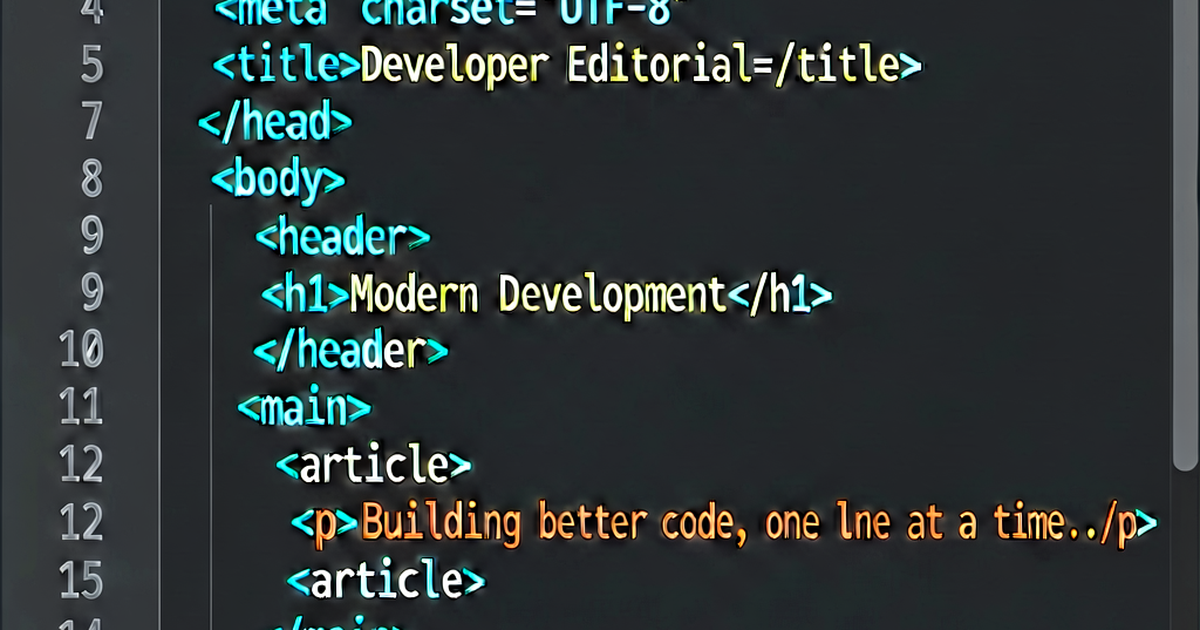

HTML indentation has no enforced standard — browsers ignore whitespace — but consistent indentation is essential for readability, code review, and debugging. Here are the conventions that have emerged across the industry.
The basic rules
Indent children: Every element nested inside another gets one additional level of indentation.
<body>
  <header>
    <nav>
      <ul>
        <li><a href="/">Home</a></li>
        <li><a href="/about">About</a></li>
      </ul>
    </nav>
  </header>
  <main>
    <article>
      <h1>Page Title</h1>
      <p>Content paragraph.</p>
    </article>
  </main>
</body>
2 spaces per level is the dominant web convention. Google’s HTML Style Guide, Airbnb’s style guide, and most popular editors default to 2 spaces. 4 spaces is common in some teams; tabs are used by others.
Consistency within a project matters more than which you choose. Pick one and use .editorconfig to enforce it.
When NOT to indent
Inline elements inside block elements: <strong>, <em>, <a>, <span> inside a paragraph don’t get their own line:
<!-- Good: inline elements stay inline -->
<p>Read the <a href="/docs">documentation</a> for more details.</p>

<!-- Awkward: treating inline as block -->
<p>
  Read the
  <a href="/docs">documentation</a>
  for more details.
</p>
The second version adds whitespace nodes around the link, which can affect rendering (extra spaces in text).
Short self-contained elements: If the element and its content are short, one line is fine:
<li><a href="/">Home</a></li>
<h1>Page Title</h1>
<p>A short paragraph.</p>
Only break to multiple lines when the line is getting long or has multiple attributes.
Attribute indentation for long elements:
<!-- Short: one line -->
<input type="text" name="email" required>

<!-- Long: one attribute per line -->
<input
  class="form-control form-control-lg"
  type="email"
  name="email"
  id="user-email"
  placeholder="you@example.com"
  autocomplete="email"
  required
  aria-label="Email address"
>
The closing > position is a matter of style. Prettier uses a new line by default (bracketSameLine: false).
<head> indentation
The <head> contents should be indented:
<!DOCTYPE html>
<html lang="en">
<head>
  <meta charset="UTF-8">
  <meta name="viewport" content="width=device-width, initial-scale=1.0">
  <title>My Page</title>
  <link rel="stylesheet" href="/styles.css">
</head>
<body>
  ...
</body>
</html>
Some style guides don’t indent <head> and <body> themselves (treating them as structural rather than content containers). Both are defensible — pick one and be consistent.
Deeply nested HTML
HTML that exceeds 5–6 levels of nesting is usually a structural problem. Symptoms:
<!-- Hard to read, fragile structure -->
<div class="page">
  <div class="content">
    <div class="sidebar">
      <div class="widget">
        <div class="widget-header">
          <h3>Widget Title</h3>
        </div>
      </div>
    </div>
  </div>
</div>
Solutions:
- Extract into a component or template partial
- Replace
<div>wrappers with semantic elements that need fewer wrappers - Use CSS layout (grid, flexbox) that doesn’t require deep nesting for visual structure
Tabs vs spaces
Browsers and parsers treat both equally. The practical considerations:
| Tabs | Spaces | |
|---|---|---|
| Configuration | Viewer controls width | Width fixed at 2 or 4 |
| Alignment | Can be inconsistent between editors | Consistent everywhere |
| File size | Slightly smaller | Slightly larger |
| Convention | Common in some communities | Dominant in web/JS community |
Most web projects use spaces (2 or 4). Use .editorconfig to enforce:
# .editorconfig
root = true

[*.html]
indent_style = space
indent_size = 2
charset = utf-8
end_of_line = lf
trim_trailing_whitespace = true
insert_final_newline = true
Editor configuration
VS Code settings.json:
{
  "[html]": {
    "editor.tabSize": 2,
    "editor.insertSpaces": true,
    "editor.detectIndentation": false
  }
}
Format on save:
{
  "editor.formatOnSave": true,
  "[html]": {
    "editor.defaultFormatter": "esbenp.prettier-vscode"
  }
}
JetBrains IDEs (WebStorm, IntelliJ):
Settings → Editor → Code Style → HTML → Tabs and Indents → set indent size to 2.
Auto-format messy HTML
Paste any HTML into htmlformat.io to apply consistent indentation instantly — useful for reformatting generated HTML, email templates, or code from other sources.

Related reading
-
Prettier HTML Formatting: Configuration and Common Issues
Configure Prettier for HTML files: print width, attribute wrapping, whitespace sensitivity, and integration with VS Code, ESLint, and pre-commit hooks.
-
How to Format HTML: Tools, Rules, and Editor Shortcuts
Format messy HTML with online tools, Prettier, VS Code, or CLI utilities. Covers indentation rules, attribute ordering, and formatting HTML templates.
-
HTML Beautifier: Making Minified or Messy HTML Readable
How to beautify HTML — format minified output, fix broken indentation, and make auto-generated markup readable. Tools for browser, CLI, and programmatic use.